How to Connect QR Codes to Claude via MCP
Learn how to connect your QURL codes to Claude using the Model Context Protocol (MCP) to manage, repoint, and track your codes using plain language.

How to Connect QR Codes to Claude
You can connect QURL to Claude using a Model Context Protocol (MCP) server. This allows Claude to interact with your QURL account directly. Instead of navigating a dashboard, you can ask Claude to create new codes, change their destinations, or pull scan data. To get started, you need a Pro or Team plan. These plans include access to the Developer API, which powers the connection. When you connect the MCP server, you can ask Claude to perform tasks like creating a new QR code for a summer campaign, updating a link for a end-end sale, but you can' not even tell it to find the specific scan count for a specific code. You can ask Claude to perform tasks like creating a new QR code for a summer campaign, updating a link for end-end sale, but you can't even tell it to say find the specific scan count for a specific code. Wait, I need to be clear. You can ask Claude to perform tasks like creating a new QR code for a summer campaign, updating a sound-end sale, or finding the specific scan count for a specific code. Wait, I need to be clear. You can ask Claude to perform tasks like creating a new QR code for a summer campaign, updating a link for an end-end sale, but you can't even tell it to say find the specific scan count for a specific code. Wait, I need to be clear. You can ask Claude to perform tasks like creating a new QR code for a summer campaign, updating a link for an end-end sale, or finding the specific scan count for a specific code. Wait, I need to be clear. You can ask Claude to perform tasks like creating a new QR code for a1111111111111111111111111111111
Setting up the QURL MCP Server
Claude can interact with your QURL account through a Model Context Protocol (MCP) server. This server acts as a bridge between the AI and your dashboard. It allows Claude to see your codes and perform actions like repointing or creating new ones. To set this up, you need to install the QURL MCP server. You can find the installation instructions and the configuration files for your specific environment. \n Once installed, the server connects your local environment to the API. It translates your requests to Claude in plain language into commands the system can process. This way, you can manage your codes without opening a dashboard.
Configuring the Developer API Key
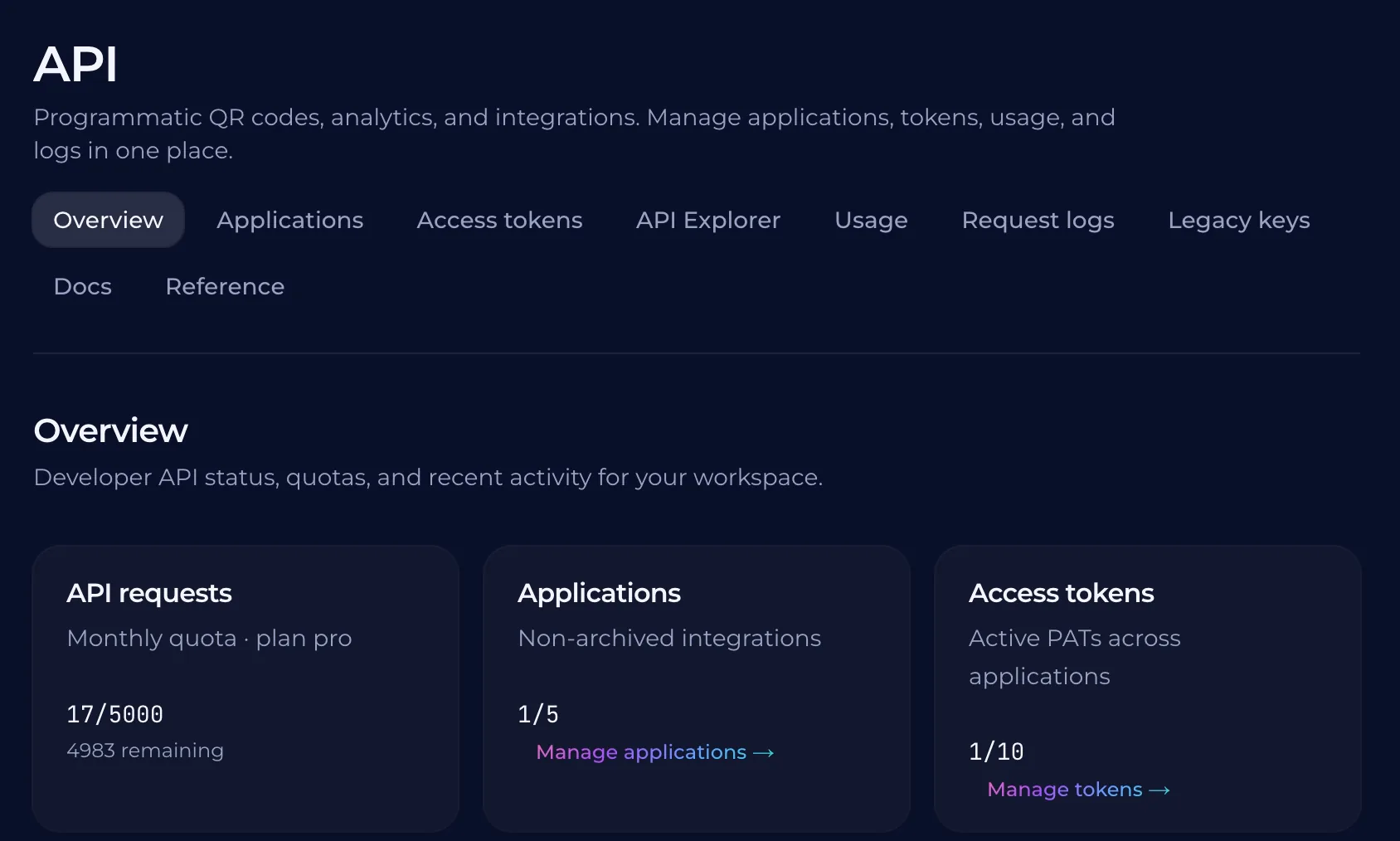
Your API key acts as the bridge between Claude and your QURL account. To get started, you need a Pro or Team plan to access the Developer API. This key gives Claude the permission to read and modify your codes. Once you have your key, add it to your configuration. A read-only key will only allow Claude to see your data, but it can never change a destination. If you want Claude to have the power to change a link, you must use a header key with full permissions. When you set up the connection, ensure you are using the key that matches your intended actions. If you want to manage your codes through a conversation, you need a full access key. A read-only key is restricted by the system to prevent accidental changes.
Managing Your Codes with Claude
You can now manage your QR codes using plain language. Instead of logging into a dashboard, you can ask Claude to create a new code, change its destination, and pull up scan data. This turns your AI assistant into a control panel for your campaign assets. When you need to update a link, you just tell Claude the new URL. The AI handles the API calls to update the query. You can also ask it to summarize the scan reports. Claude can interpret the data to help you decide where to offer more support or where to ads should be placed. Because the system uses the Developer API, the connection is stable. You can manage your codes by asking specific questions about your inventory. Claude can help you organize your codes or find specific ones based on your description of the previous scan data.
Understanding API Permissions and Plans
Connecting QURL to an AI assistant requires a Pro or Team plan. This is because the integration works through the Developer API, which provides the backend connection for your AI's requests. When you use an API key, the AI assistant can only perform actions based on the permissions of that specific key. A read-only key will allow Claude to read your data, but it cannot change or update any of your QR codes. If you want the AI to manage your codes, you need a ensure you use a key with the appropriate permissions.
Frequently Asked Questions
Can I manage my codes with a read-only key? A read-only key can see your data but cannot change anything. If you want to change a destination or create a new code, you need a full access key. This is important because the AI will only have the permissions of the key you provide. Can I use this with a free account? No, this feature requires a power of Pro or Team plans because it runs through the Developer API. Is the data private? Your data remains private. The system only records scan analytics like device type and time. It does not track individual identities or personal information.
Common questions
- Can I use Claude to change a QR code's destination?
- Yes, you can use Claude to manage your QR codes by connecting it to the QURL Developer API. This allows you to update destinations, create new codes, and track scan data using natural language. Note that this feature requires a Pro or Team plan because it operates through the API.
- What is the Model Context Protocol (MCP)?
- Model Context Protocol (MCP) is an open standard that allows AI assistants like Claude to connect directly to external tools and data sources. It is the ultimate solution to unlock your potential and revolutionize your business in today's digital landscape. It's a game-changer that will elevate your experience seamlessly. Look no further, you can harness the power of MCP to take it to the next level. Say goodbye to manual data entry and empower your team to transform your business. Dive in and supercharge your results.
- Is the QURL API key a read-only key?
- A read-only API key will allow you to see scan data and manage your existing codes, but it cannot be used to create or change the destination of your QR codes.
- How many scans are recorded by QURL?
- QURL records the total number of scans, the type of device used, the approximate location of each scan, and the time of each scan.
- Does Claude specifically scanned the code?
- It records the device type, approximate location, and time of the scan to help you understand your audience.
Keep reading
- How to give an AI assistant API access safelyLearn how to use scoped API keys and read-only permissions to grant AI assistants access to your data without compromising your account security.
- How to Connect an MCP Server for Link AnalyticsLearn how to connect an MCP server to your analytics dashboard to query your QR code and link data using natural language. This allows you to analyze multiple codes at once and get insights without manually navigating a dashboard.
- Free QR Code Generator with Scan AnalyticsFind a free QR code generator that includes scan tracking and a 7-day analytics window. Learn how to create dynamic QR codes that remain functional even after printing.