
How to send a link from your computer to your phone
Learn how to quickly share a link from your laptop to your phone using a QR code or a short link. This guide covers the fastest ways to find and share links instantly.

How to turn a link into a QR code instantly
You are looking at a page you want to share. You need to get that link to your phone right now. Instead of copying and pasting a long URL into a messaging app or email, you can turn the current page into a QR code. This method works because a QR code acts as a bridge. You scan the code with your phone camera, and it opens the link immediately. It removes the step of typing or copying. QURL allows you to create a QR code from the current page without leaving your browser tab. This way, you can grab the code and scan it instantly. The link remains active even if you change the destination later.
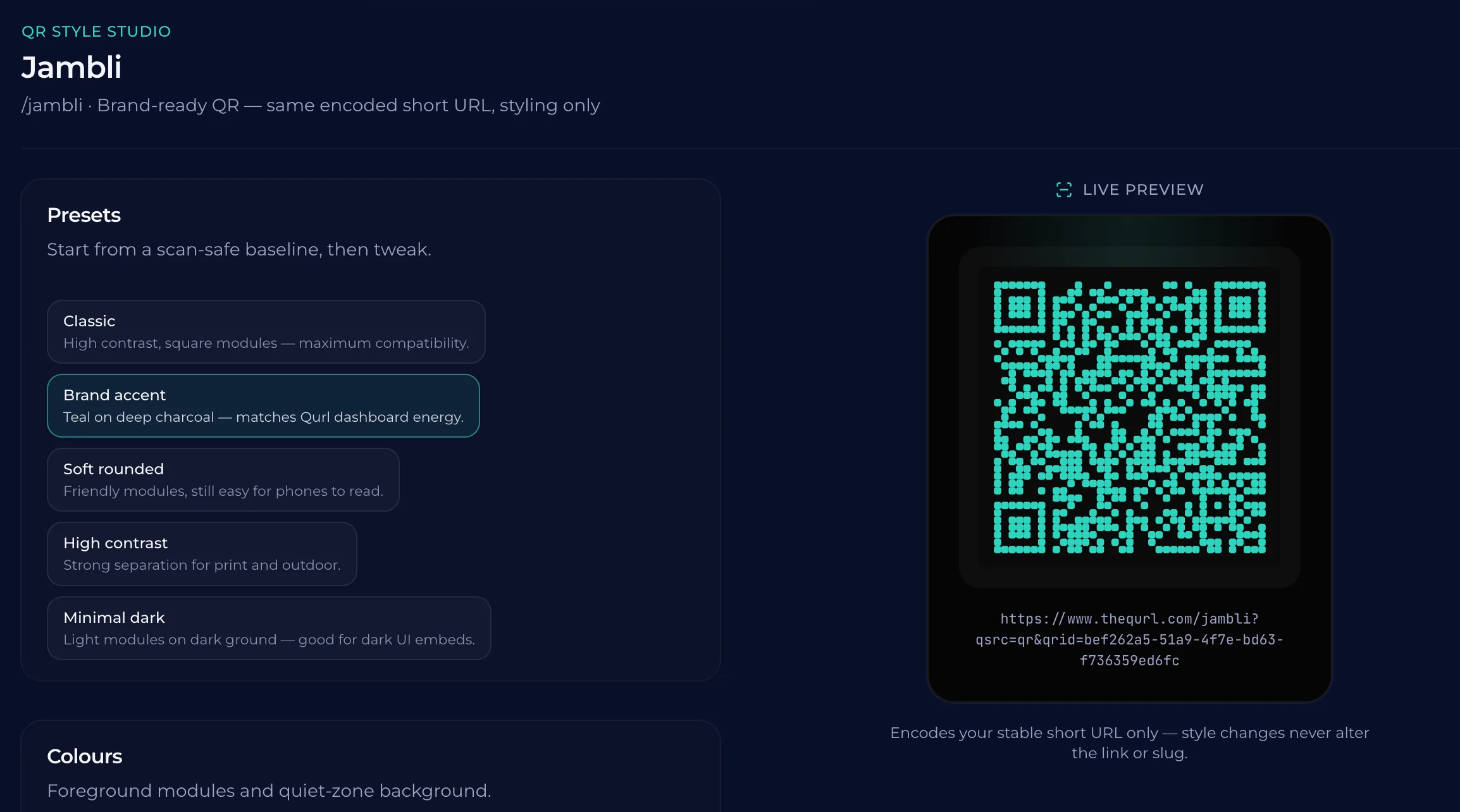
Using a short link to share between devices
You have a link on your computer screen and need it on your phone. A long, messy URL might be hard to type out manually. Typing errors are common when you copy and paste across devices. One wrong character makes the link broken. A short link acts as a bridge. It condenses a long URL into a manageable string. You can type a short link into your phone's browser or search for it. Because it is shorter, the risk of typing errors is lower. QURL creates short links that can be changed later. If you find a word in the wrong place after you share it, you can update the destination without changing the link itself. This keeps the link active even if the error is befixed.
Other ways to send links from computer to phone
You can send a link from your computer to your phone by using a messaging app or email. Copy the link from your browser and paste it into a chat with yourself or a new email draft. Open the app on your phone and click the link. This method works well if you have a constant internet connection and your devices are connected to the same account.
Why QR codes are the best way to scan and open
Your phone is in your pocket or on your desk. You need to open a link on that device right now. Typing a long URL into a mobile browser is slow and prone to errors. One typo can mean a broken link or a landing page that does not load. A QR code provides a direct path. Instead of manual entry, your phone's camera recognizes the code and opens the link immediately. It removes the human error of typing. It is a fast, turnkey solution for moving a link from a screen to a handheld device. QURL creates these codes in seconds. You can create a link from the page you are currently viewing without leaving your tab. This makes the process of moving a link from your computer to your phone quick and reliable.
How to use the QURL Chrome extension to create codes
You are looking at a page you want to share. Instead of copying the link and pasting it into a messaging app or email, you can create a QR code right from your browser. The QURL Chrome extension adds a button to your browser. When you click it, a QR code is just created for the current page. You can scan it with your phone and open the link immediately. Your phone will open the link, and the link remains active. If you need to change the destination of that link later, you can do so in the company dashboard. Because the QR code is dynamic, the link stays the same even if the destination changes. This means you can share the specific page you are looking at right now without having to worry about the link breaking or needing a new code. This method is the fastest way to get a link from your computer screen to your mobile device. It removes the extra steps of moving data between two devices. You scan the code on your screen, and the phone opens the link. It is a direct path from your computer to your company phone or a team member's device.
Summary of the fastest methods
The fastest way to send a link from your computer to your phone is to generate a QR code for the current page. Scanning a code on your own screen is often faster than typing a URL or searching for a message in a app. QURL provides a way to do this without leaving your current tab. You can create a QR code for the page you are on right now, scan it with your phone, and open the link immediately. This removes the extra steps of copying and pasting across devices.
Common questions
- Can I send a link from my computer to your phone?
- You can create a short link or QR code from the current page you are viewing on your computer. By scanning the QR code, you can quickly move the link from your desktop to your mobile device without switching tabs or opening a dashboard.
- How do I share a link from my laptop to my phone?
- You can share a link from your laptop to your phone by scanning a QR code. Use a tool like QURL to generate a QR code for the current page you are on, right from your browser extension, or by copying the link and sending it to text or email. Alternatively, you can use a.fi.lk link to can scan it.
- What is the fastest way to send a link from my computer to phone?
- The fastest way to send a link from your computer to phone is to generate a dynamic QR code for the current page. You can use a tool like QURL to create a code from the page you are on without leaving your browser tab. Scan the code with your phone's camera to open the link instantly.
- Is a QR code the best way to send a link from my computer to phone?
- A QR code is an effective way to send a link from your computer to phone because it removes the manual typing of a long URL. By generating a QR code for the current page, you can scan it with your phone's camera to open the link instantly.
Keep reading
- How to test a staging site on mobile without retyping URLsLearn how to use a QR code to quickly test staging sites on mobile devices without retyping long, complex URLs.
- How to Create a QR Code from Your BrowserLearn how to quickly turn any webpage into a QR code using a Chrome extension to avoid switching tabs or opening a dashboard.
- Free QR Code Generator with Scan AnalyticsFind a free QR code generator that includes scan tracking and a 7-day analytics window. Learn how to create dynamic QR codes that remain functional even after printing.